
Import from Whisper format file
DOTE is able to import transcripts prepared by most Whisper-based AI transcription services, specifically .JSON files in the following formats produced by: OpenAI Whisper, WhisperX, Faster-Whisper, Whisper.cpp., as well as .dote exports from MacWhisper.
Watch the video tutorial on YouTube.
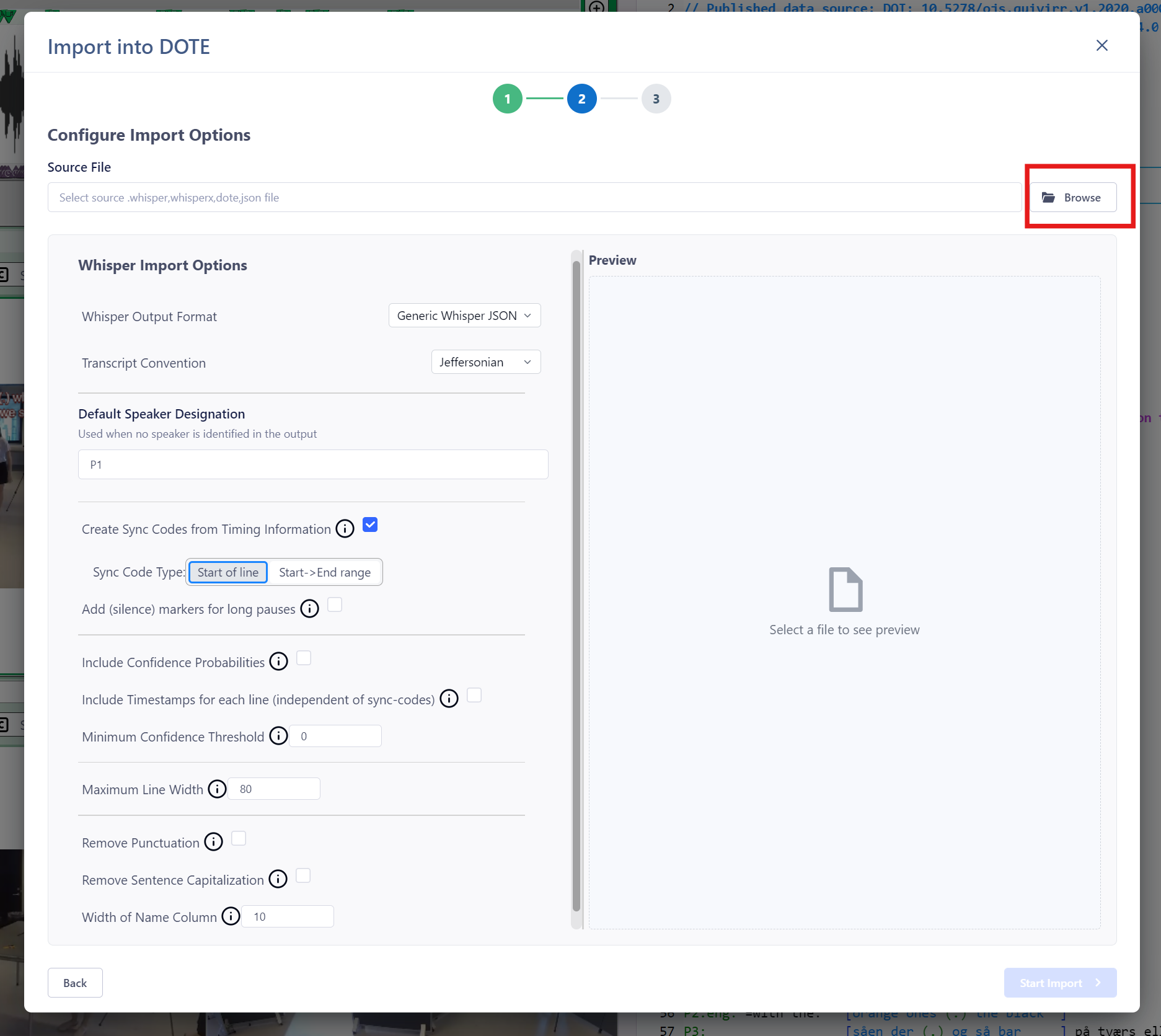
- Select
File ➔ Importor click theImportbutton on the right of the ribbon bar. - Click on the relevant
Continuebutton for "Whisper Format". - Specify the "Source File" location for the Whisper file to import.
- Enter a unique name for your new Transcript Name.
- Choose from the Whisper Import Options:
Transcript Convention- Jeffersonian or Mondadaian.Default Speaker Designation- In case there is no speaker-id supplied by Whisper, the default speaker designation will be added on each line.Create Sync-codes from Timing Information.Start of line- The timing information is used to create a sync-code representing the start of the line.Start -> End range- Use the duration from the timing information to generate a ranged sync-code.- Include timestamps on lines with sync-code
Timestamp format- Specify the precision of the timestampTimestamp placement- Specify where the timestamp should be located on each lineTimestamp brackets- Define which type of brackets should be used around a timestamp
Add silence markers for long pauses- For pauses longer than 1 second, add a line showing the pause. Example:(1.5)
Include Timestamps for each line- Add a technical comment to each line showing the timing information provided for that line. Example:// [Time: 0:22 - 00:27]- If per-word translation confidence values are provided:
Print average confidence % per line- Display this information as a technical comment at the end of each line. Example:// [Avg. Confidence: 85%]Minimum confidence threshold- Set a percentage value where if the translation confidence is lower, wrap the word or group of words in parentheses. Example:hello my name is (jane)No confidence threshold- Set a percentage value where if the translation confidence is lower, replace the word or words with a spaces (one space per 0.1 seconds of duration), wrapped in parentheses. Example:hello my name is ( )
Maximum Line Width- If a line exceeds this, then it is wrapped to a new line without an additional speaker designation.Remove Punctuation- Remove any punctuation symbols (".,?"). NOTE: this will also remove those symbols even if they are used to mark interactional intonation (though whisper is currently unable to produce such interactional markers)Remove Sentence Capitalisation- Remove from the body of the transcript to be imported. NOTE: this will also decapitalise proper nouns and abbreviations if they appear at the start of a sentence.Width of Name Column- Number of characters between start of line and body of transcript.
- When ready, click on
Start Import. - The Transcript will be added to the current Project, so make sure the audio/video file used to prepare the whisper export is comparable to the transcript.
A preview of the imported transcript will be updated on the right side after any changes to the Options.