
Embedding subtitles in video playback in a Media Player Panel
Please watch the video tutorial.
A brand new feature in v2.0 is the ability to embed subtitles live in a Media Player Panel while playing the video.
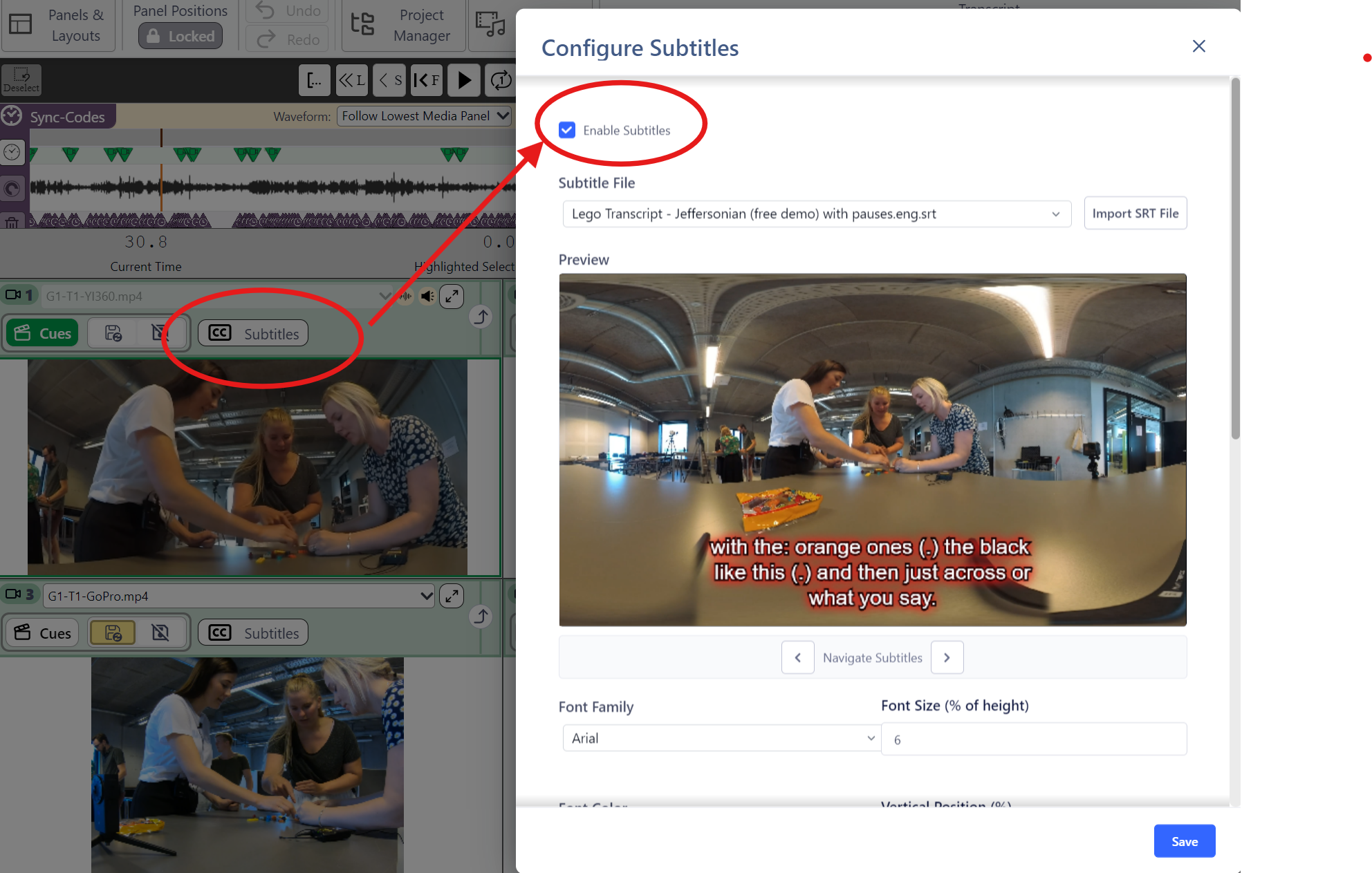
Using an already generated SRT file
This feature works by attaching a specific subtitle file, which has already been generated and matches the Project, to a specific Media Player. With multiple Media Player Panels open, one can attach independent subtitles to each Media Player Panel, so that it is possible to have English in one, the native language in another, and comments in a third.
First one has to generate an SRT file. Luckily, that is possible in DOTE by exporting your DOTE transcript to SRT, provided the transcript does not have any major errors.
Give the generated SRT file a useful name.
Given that it is frozen image of the transcript when the export took place, it is recommended to add a useful name plus a date- and timestamp, eg. subtitles-Lego Demo Transcript (Jeffersonian)-3.3.2026-12:45
We use such examples in the Lego Demo Project that you can try out.
They are stored in the Project folder that is created when you import the Demo Project.
It is best to store the generated subtitle file in the Project folder, but you can store it anywhere as long as it is always available to DOTE during playback.
Loading an SRT file for use in a Media Player Panel
Subtitles contained in the plain text SRT file can be loaded into any Media Player panel. They are specific to that Media Player.
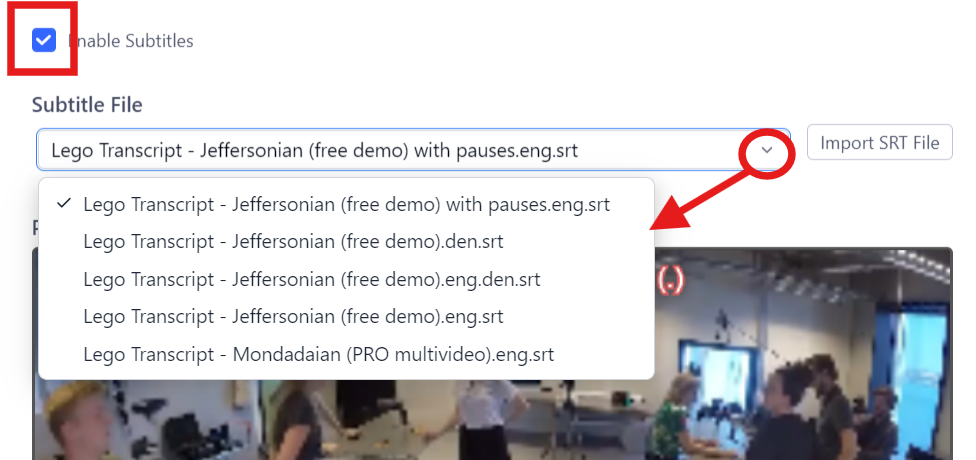
These are the steps to load an SRT file:
- Select a Media Player panel.
- Click on the subtitles button at the top of the panel.
- Click on
Enable Subtitlesin the dialog box that opens. - Click on
Import SRT Fileand search for and select an SRT (.srt) file to import. If you have SRT files already stored in the Project folder on your file system, they will be listed automatically in the drop-down. - A preview should appear in the video window.
- You can navigate the subtitles by clicking on the
<or>buttons underneath the video preview. - Change the options as appropriate (see below).
- Click on the
Savebutton.
Options for viewing subtitles
There are several options that one can tweak to find the best presentation:
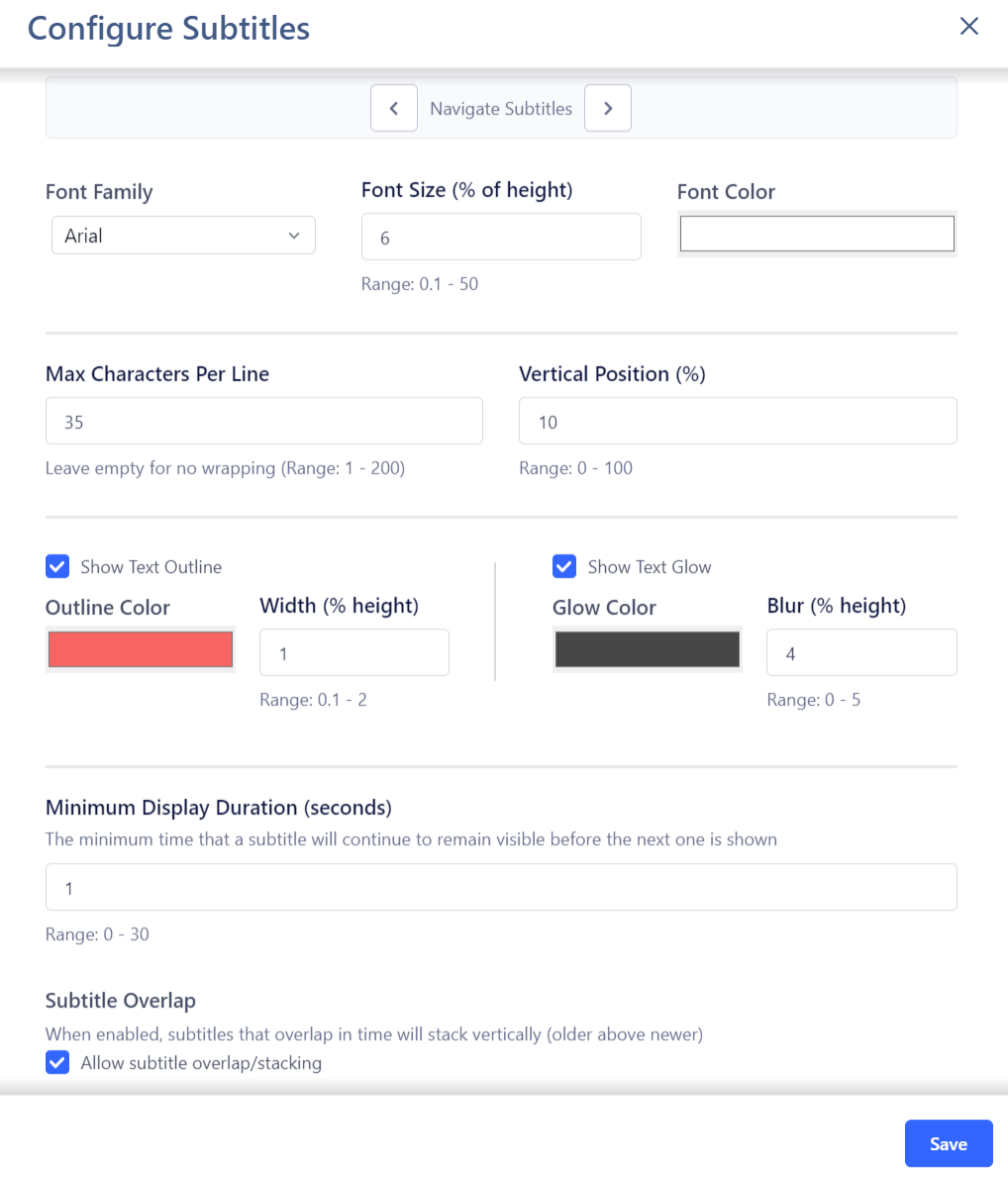
- Font Family - select an appropriate serif or non serif font.
- Font Size - select an appropriate font size.
- Font Color - select an appropriate fill color for the characters.
- Max Characters Per Line - select how many characters to display in a line before it is wrapped.
- Vertical Position (%) - adjust the vertical position in the Media Player panel.
- Show/Hide Text Outline - add an outline for readability on all backgrounds.
- Outline Color - select an appropriate outline color.
- Outline Width (% of height) - adjust the width of the outline to make the characters pop.
- Show/Hide Text Glow - add a glow to the text.
- Glow Color - select an appropriate glow color.
- Glow Blur (% of height) - adjust the width of the glow to make the characters pop.
- Minimum Display Duration - for very brief subtitles, you can enforce that they remain on screen for a minimum period of time.
- Allow subtitle overlap/stacking - allow subtitles with a dense timing to appear stacked with older above newer.
Plans for generating live subtitles
We plan to allow DOTE to generate live subtitles for a specific transcript, so that every time a video is played subtitles will be displayed that draw upon the current state of the transcript, ie. edits will show up immediately in a Media Player panel during playback. This functionality is not yet available.