
Export to RTF
DOTE supports Export to RTF, since all word processors on different platforms can read lightly formatted RTF files. We also support Export to SRT because most desktop media players can play simple subtitles from such a file and overlay them on the video.
Changes to Export to RTF default options will persist across DOTE sessions, but changes to Export to SRT options will not (because they are dependent on the specifc transcript translation subtiers).
We also offer Import from JSON and Import from SRT, which are useful for importing from other applications.
How to export to RTF
- Select
File ➔ Exportfrom the menu or click theExportbutton on the ribbon bar. - Click on the relevant
Continuebutton for "RTF Document". - Specify the "Destination File" location for the exported file (
.rtf). The default filename suggested will be the same as the name of the Transcript inDOTE. - Choose your options from the check boxes, drop-down list and variables.
- Select
EXPORT. - Select a location and filename for the RTF export.
- After a short pause, DOTE will return to display the transcript.
- You can find the RTF file in the folder you selected.
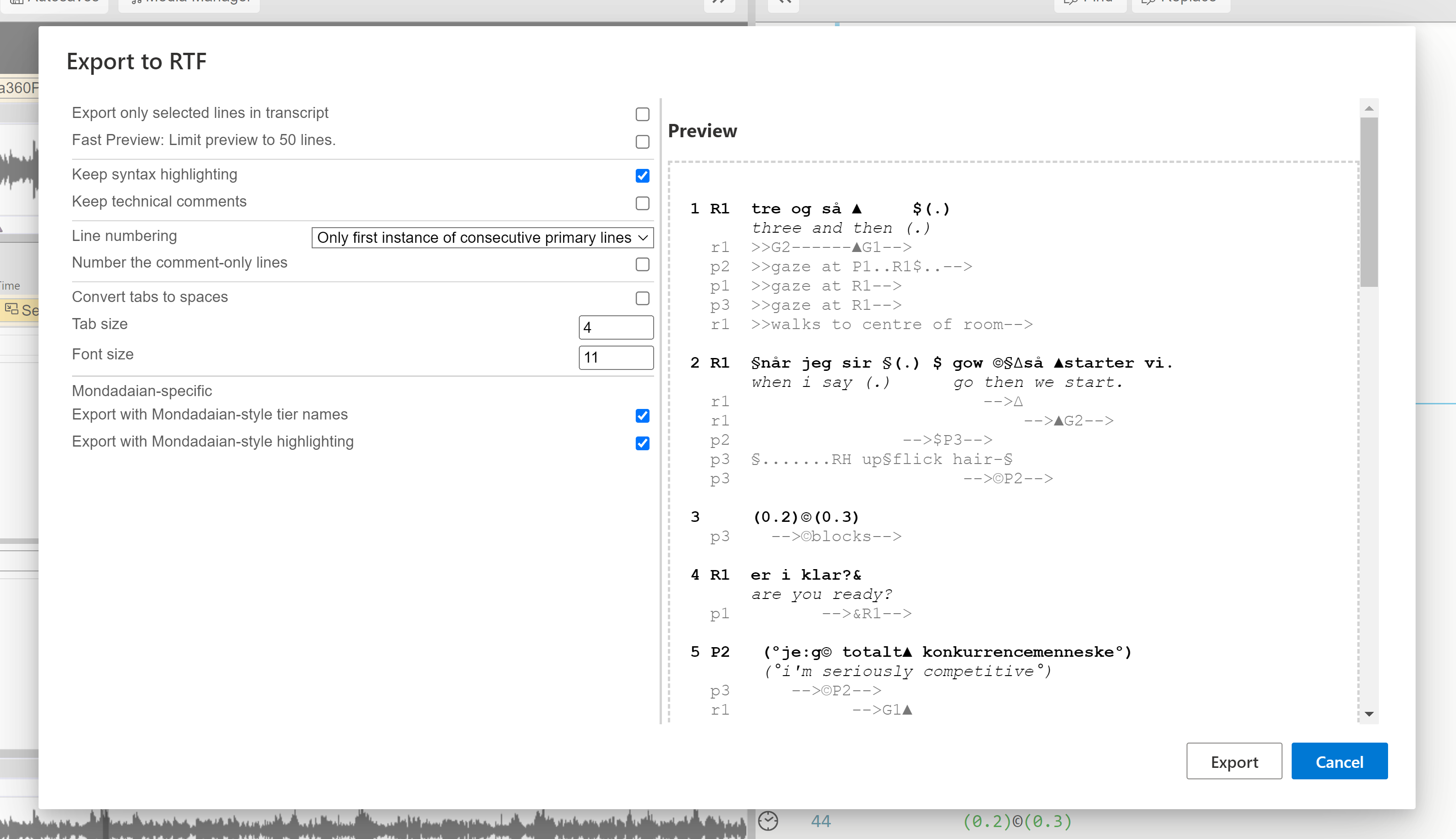
On the right is a preview panel that shows all the lines of the current transcript (or selected lines only) and updates according to your choices made in the left panel.
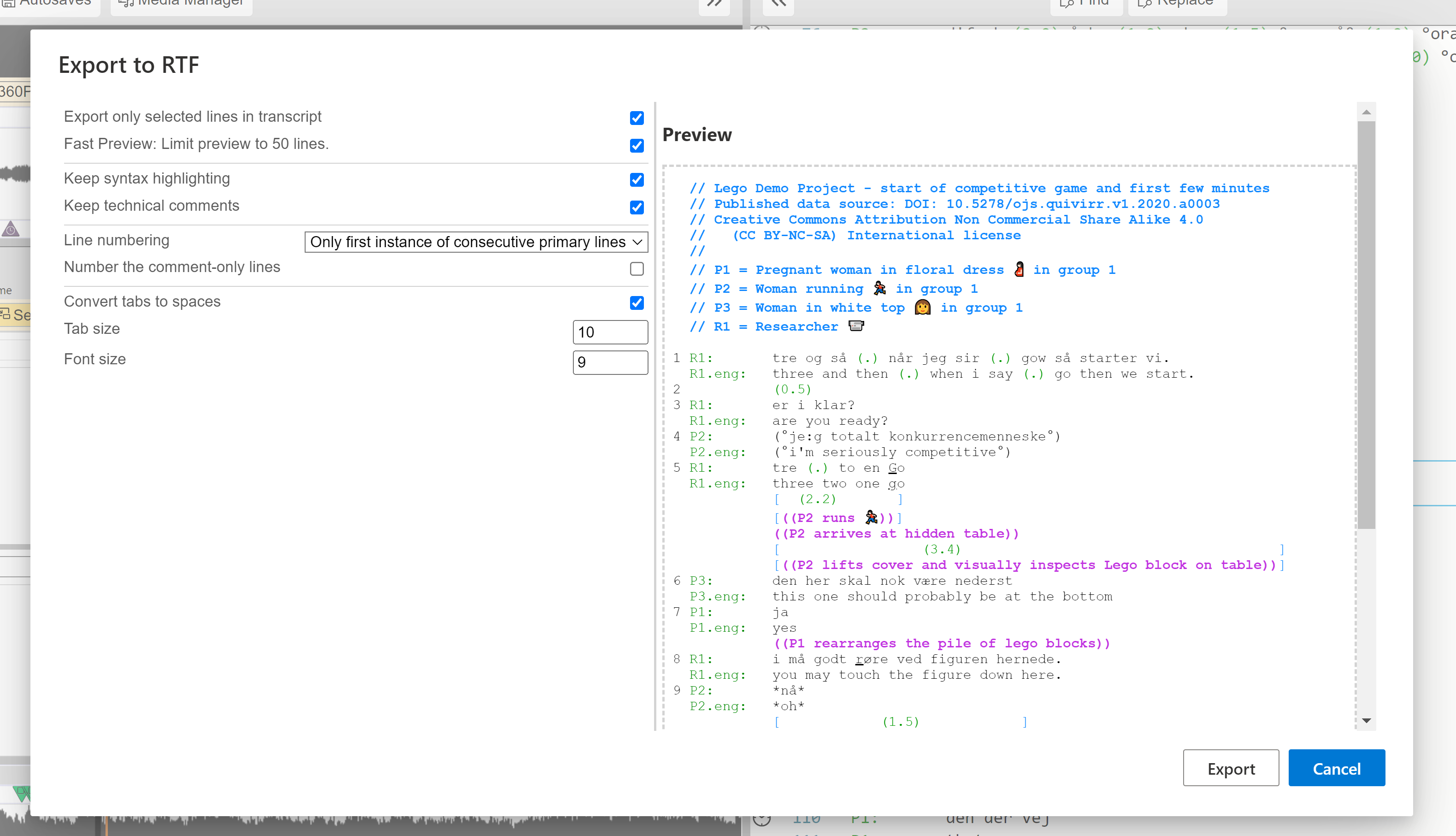
If there are serious errors in the transcript that DOTE has trouble with, then this will be indicated on a line-by-line basis. The transcript can still be exported to RTF, but there may be lines that are not correctly formatted because of the errors.
Notes on options
Only selected lines
If you had already selected a specific range of lines in the Editor before opening the Export to RTF panel, then you can choose to export only that range of lines, with line numbers starting at 1. If not, then all lines will be exported.
Restrict to 50 lines (in the preview)
Because it can take time to parse the transcript and prepare the preview with very long transcripts, you can restrict the number of lines displayed in the preview window regardless of whether all or only selected lines has been chosen. Using this option may help speed up preview when fiddling with the options on the fly. Note that all lines, or only those selected, will still be exported to disk, as expected.
Syntax highlighting
DOTE automatically adds syntax highlighting in the Editor panel. You can also export this highlighting or just plain text. There is also specific formatting that can be added to match either Jeffersonian or Mondadaian style.
Keep technical comments
If you have used technical comments //, eg. for metadata or just to add a comment in the transcript, then you can export them intact or remove them completely.
eg. there are two cases of technical comments below.
// Metadata

J:	and then she said     // reported speech
Line numbering
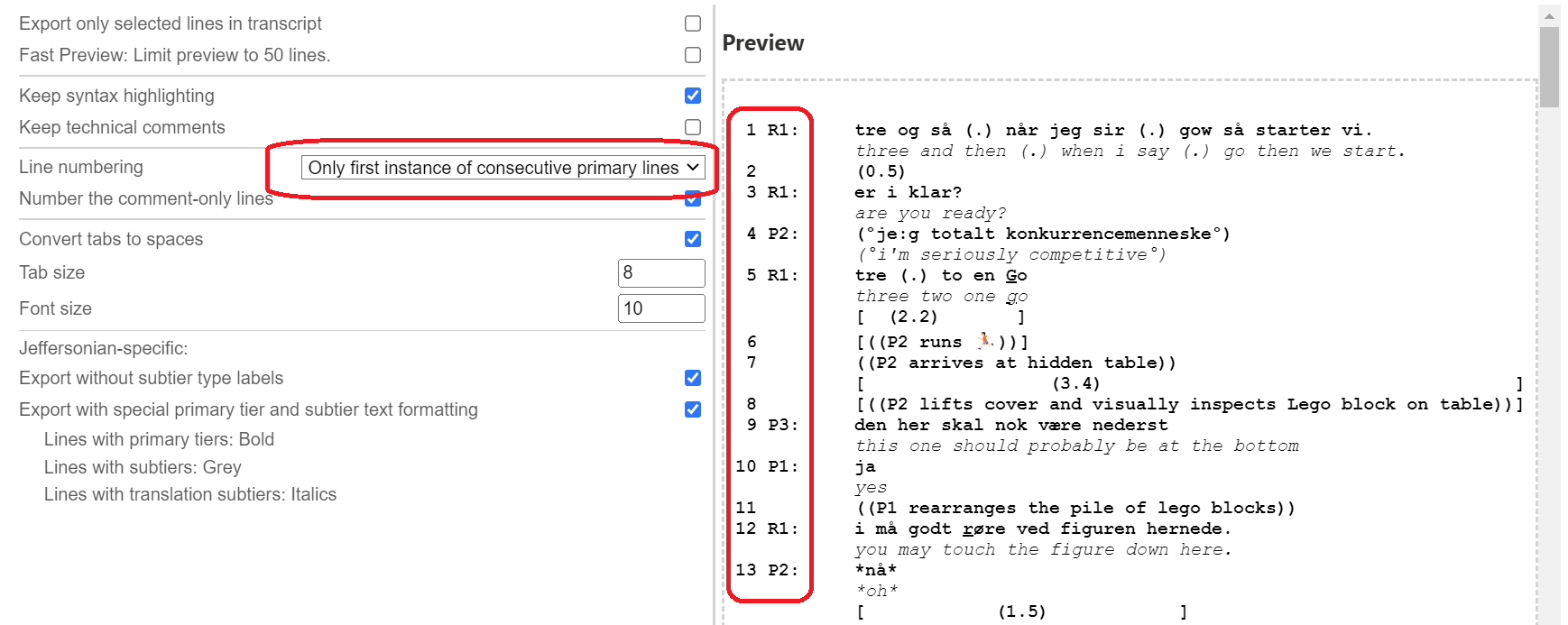
If you have followed DOTE's format and layout conventions, then there are several choices of line numbering.
None: No line numbers are added.All: Every line is given a number starting at 1.Only primary lines: Only lines with a primary speaker tier or a timing interval tier are given line numbers.Only first instance of consecutive primary lines: Only the first instance of line with a primary speaker tier is given a line number if the same speaker continues in the next neighbourhood.
Number the metadata lines
If All is selected, then one can choose to number the metadata lines as well, or not, ie. all the lines at the start of the transcript which are technical comments..
Number the comment only lines
If Only primary lines or Only first instance of consecutive primary lines is selected, then one can choose to number the comment only lines ((...)), or not.
eg. the second line below is a 'comment only' line.
P:	look at that
	((points))
	over there
Convert tabs to spaces
By default, DOTE will export the TAB after the speaker-id + named subtier type. This is useful for adjusting the formatting later in a word processor.
- You can choose to replace the TAB with an equivalent number of spaces instead. This is not reversible later in a word processor, but might help formatting and layout when working with a publisher.
Tab size and Font size
The default font in the exported RTF is Courier New.
This cannot be changed in DOTE, but of course it can be in a word processor.
The monospaced font Consolas is recommended in WORD for readability and a tighter character spacing.
- You can adjust the font size and the TAB size (eg. the width in characters from the initial character on each line to the transcript text) to your liking.
Prettified Transcript
There are two choices to prettify the exported transcript:
- Remove subtier names (eg. translation and gloss subtier types).
- Format primary tiers and subtiers in a neighbourhood.
Prettification is dependent on whether the transcript conforms to the Jeffersonian or Mondadaian conventions.
Jeffersonian style and layout
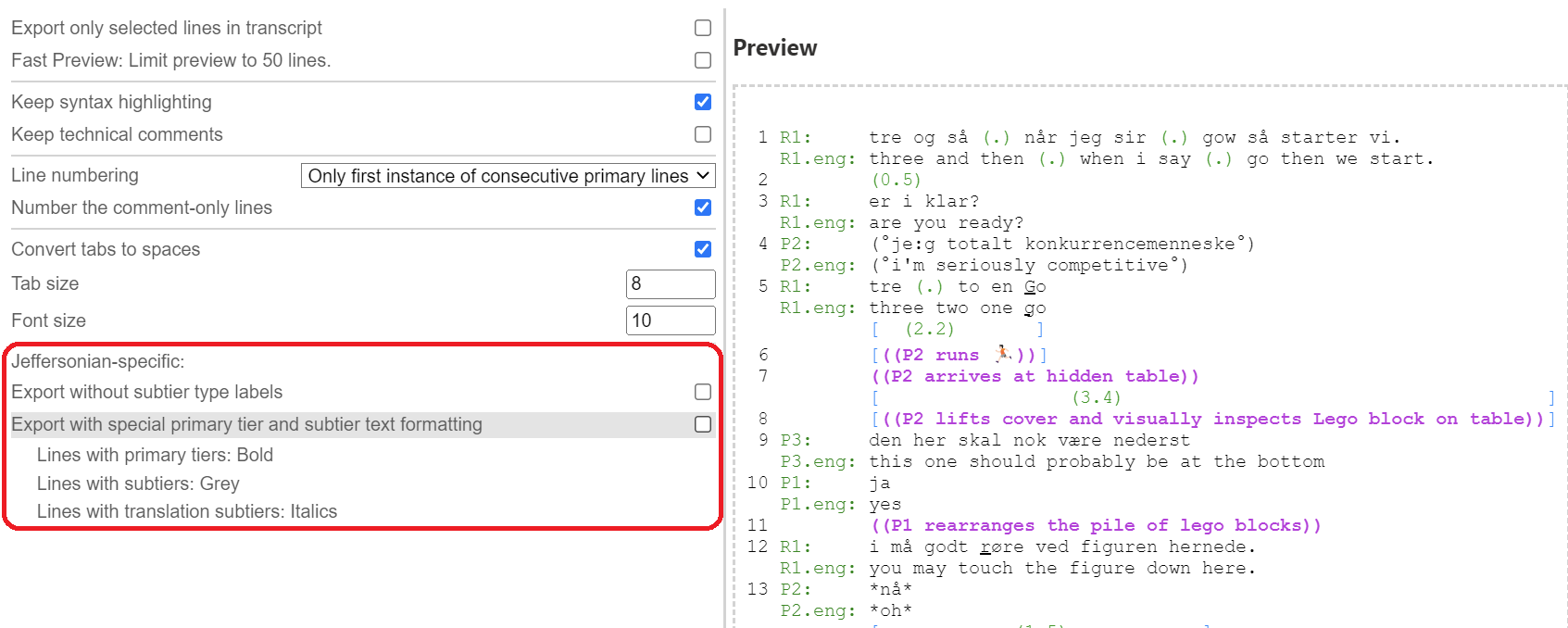
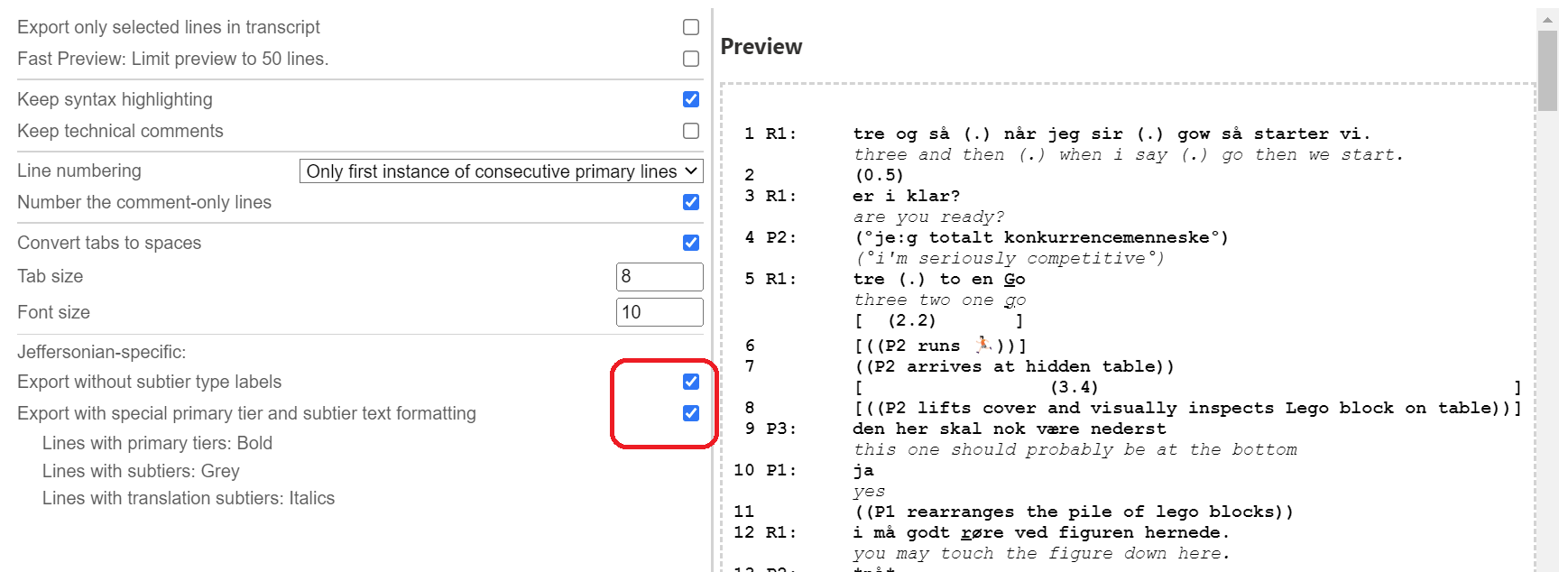
If you have set your transcript to Jeffersonian conventions in Transcript Options, then you will be able to select the following options:
- Remove subtier type labels.
- Only the speaker-ids remain.
- Add formatting to primary tiers and subtiers in a neighbourhood:
- Bold for primary tiers.
- Grey text for all subtiers.
- Italic for translation subtiers.
- When formatting is selected, syntax highlighting is not available.
BEFORE:
AFTER:
Mondadaian style and layout
If you have set your transcript to Mondadaian conventions in Transcript Options, then you will be able to select the following options:
- Use standard Mondadaian style layout of speaker-ids and tiers:
- Remove subtier type labels on all subtiers.
- Lowercase speaker-ids for all subtiers; uppercase for primary tiers.
- No colon after the speaker-id.
- Use standard Mondadaian style formatting:
- Bold for primary tiers.
- Grey text for all subtiers.
- Italic for translation subtiers.
- When formatting is selected, syntax highlighting is not available.
- Remember to also select
Only primary linesorOnly first instance of consecutive primary linesfor line numbering.
Notes on editing the RTF export in a word processor
The RTF file that is exported by DOTE should be readable and editable in any word processor, such as Microsoft WORD or Open Office. The layout and vertical alignment should be preserved in the export from DOTE to RTF.
Here are some guides about how to alter the appearance of the transcript in Microsoft WORD:
- Change page layout.
- From
Layout/Orientation.
- From
- How to change the first
TABstop position?- You can set the TAB size for the speaker column when exporting to RTF. If you need to change it later in WORD, then:
- Select ALL text
CTRL+A. AndView/Toggle Rulerand grabTABmark and slide. - Or select ALL text
CTRL+A. AndParagraph/TabsandClear Alland changeDefault Tab Stopto required width. - Note: changing the font size in WORD does not change the
TABsize. - Note: if you choose "convert tabs to spaces" in when exporting to RTF, then you cannot change the
TABstop in WORD.
- Change font typeface, eg.
CONSOLASis a pleasant monospaced font that is narrower thanCOURIER NEW, which is the default for DOTE.- Select ALL text
CTRL+A. And select new (monospaced) Font name from drop down list on the menu bar.
- Select ALL text
- How to turn off spell check and grammar check in the whole document?
- eg. from
Options/Proofingtick the two boxes to turn off both for this document.
- eg. from
- How to add automatic line numbers later using WORD if line numbers have not been exported by DOTE?
- Add Layout/Section break/Continuous at start and end of transcript. And
Layout/Line numbers. SelectRestart each section. - How to change position of line numbers? Select
Layout/Line numbers/Line numbering options/Line numbers. - How to change font and font size of line numbers? This is tricky in WORD. Set Default Font or use Manage Styles to find Line Number and change appearance.
- Add Layout/Section break/Continuous at start and end of transcript. And
- Warning: too long lines in WORD
- One thing to watch for when using WORD is the way in which WORD automatically adjusts character spacing for lines that are nearly too long to fit between the page margins, even when the font is monospaced (eg.
COURIER NEW). Instead of word wrapping, WORD will adjust character spacing to make the line fit. This means that some of the line will not be monospaced and therefore vertical alignments will be disrupted. It will do this until the line is really too long and then it will force word wrapping and return to default character spacing. This is not the fault of DOTE. It is the consequence of WORD trying to be too helpful. The solution is to break the line earlier or reduce the font size or decrease the left/right margins.
- One thing to watch for when using WORD is the way in which WORD automatically adjusts character spacing for lines that are nearly too long to fit between the page margins, even when the font is monospaced (eg.